Contractors: Stop Billing Disputes with Verified Time Tracking
For contractors and small business owners, the right answer is a mobile-first app built for field and remote work: GPS or geofenced clock-ins, offline mode for dead zones, and one-click invoicing that pulls straight from tracked hours. Skip anything that can’t export cleanly to QuickBooks or Xero. That single requirement, verified location plus frictionless export, eliminates the billing disputes that sink contractor relationships and speeds up getting paid.
TL;DR:
- GPS and geofenced clock-ins are essential for verifying fieldwork, with apps like ClockShark and Jibble excelling in location proof and job-site validation.
- Offline mode is critical for rural or remote jobsites, as loss of signal can significantly affect tracked hours, which must be fixable through manual edits.
- Direct export to QuickBooks or Xero with minimal reformatting is necessary to prevent billing disputes and streamline payroll integration.
- Running a small pilot with a maximum of 10 contractors helps identify adoption issues, focusing on simplicity and minimal friction rather than feature depth.
- Combining verification tools with automatic capture apps like Timely or Memtime can improve adoption, but trust in background tracking remains a key consideration.
Table of Contents
- Which Time Tracking Apps Work Best for Contractors?
- How Do You Choose a Contractor Time Tracking App?
- How Do You Pilot Time Tracking With Contractors?
- Why Do Integrations and Overtime Rules Matter?
- What Happens When Contractors and Nearshore Developers Share a Timesheet?
- What Do Real Rollouts Actually Look Like?
- What Actually Gets Contractors to Use a Time Tracker
- When Staff Augmentation Beats Managing More Contractors
- Primary Sources Referenced in This Article
- Sources
- FAQ
Which Time Tracking Apps Work Best for Contractors?
Seventeen tools show up again and again when contractors and small business owners compare options, and they split into fairly distinct camps. Some are built for field crews standing in a parking lot at 6 a.m. Others are built for consultants who bill by the hour and never leave a desk. Matching the tool to the job matters more than chasing the longest feature list.
Harvest remains the standard for solo contractors and small teams who want tracked hours to become an invoice without retyping anything. It supports offline mobile tracking and pushes hours directly into project-level billing, so a rained-out job site doesn’t mean lost data. Best for: freelancers and small shops that bill clients directly and want the shortest path from timer to invoice.
Timely takes the opposite approach: instead of a timer you start and stop, it captures activity in the background and drafts a timesheet for you to approve. Timely markets this as automatic time capture with AI auto-allocation, positioning itself as less invasive than screenshot-based monitoring tools. Best for: knowledge workers and small teams who forget to hit “start” and want the software to fill gaps for them.
ClockShark was built for job sites, not office desks. GPS tracking, crew scheduling, and job costing are baked in, and payroll exports are designed around how construction and field-service companies actually run payroll. Best for: construction crews and field-service teams that need to prove a worker was physically on-site.
Jibble competes on price: a genuinely free tier that still includes GPS tracking, geofencing, and facial recognition verification. That combination, identity plus location, is rare at zero cost. Best for: budget-conscious companies that need field verification without a monthly bill.
Everhour doesn’t try to replace your project management tool, it lives inside it. If your team already runs on Asana, Jira, or Trello, Everhour tracks time against those existing tasks instead of forcing a separate system. Best for: teams that already have a PM tool and don’t want a second app to manage.
Toggl Track is the tool most freelancers try first, and for good reason: the free tier is genuinely usable, not a crippled trial, and the timer works the same way across desktop, browser, and mobile. Best for: independent contractors who want zero learning curve and don’t need GPS verification.
TimeCamp blends automatic tracking with reporting depth that goes beyond a simple timesheet, showing where hours land across multiple projects at once. Best for: small businesses juggling several concurrent projects who need reporting, not just logging.
Clockify offers unlimited users on its free plan, which is unusual in a category where most vendors charge per seat starting from user one. Best for: growing teams that need everyone tracking time before revenue justifies a paid plan.
Memtime skips team features almost entirely and focuses on one person’s desktop activity, auto-capturing time and syncing with your calendar. Best for: consultants and independent contractors who bill by the hour and want passive tracking with no manual timer.
Apploye rounds out the field with contractor-specific time tracking aimed at remote and distributed teams managing multiple independent workers at once. TopTracker, Time Doctor, BigTime, Deltek Replicon, SmartBarrel, and Paymo each serve narrower niches, from enterprise professional-services billing (BigTime, Deltek Replicon) to biometric job-site clock-ins (SmartBarrel) to lightweight project billing for small agencies (Paymo). My Hours offers a straightforward contractor timesheet option with reporting aimed at small teams that bill hourly.
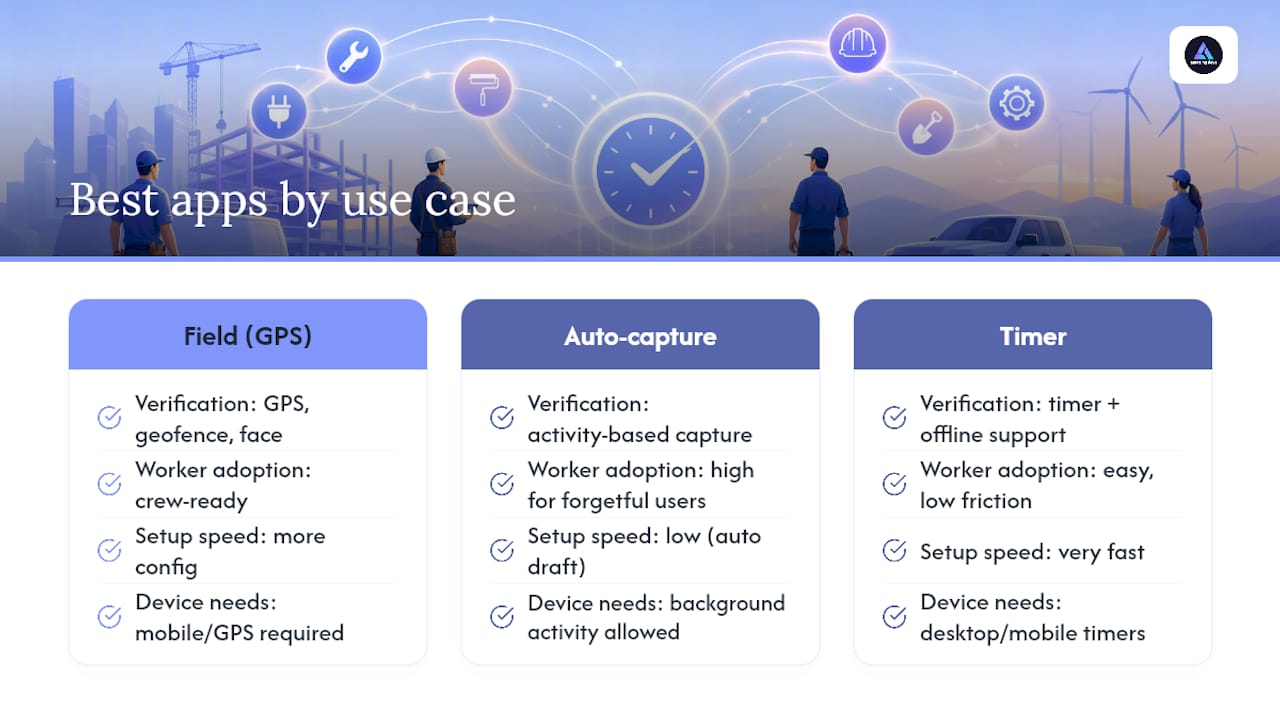
Here’s the tradeoff nobody advertises on the pricing page: GPS-heavy, field-focused tools (ClockShark, Jibble, SmartBarrel) win on verification but ask more of the worker’s phone and battery. Automatic-capture tools (Timely, Memtime, TimeCamp) win on adoption because there’s nothing to remember, but they ask more of your trust in what’s running in the background. Simple timer apps (Toggl Track, Clockify, Harvest) win on speed to set up but rely on the worker actually starting the timer.
Pro Tip: Don’t pick one tool from a spec sheet. Run two finalists side by side with the same three or four contractors for a week, then compare which one actually got used without reminders. Adoption beats features every time.
How Do You Choose a Contractor Time Tracking App?
Every demo looks good. For example, consider a GPS punch clock, geofencing & staff time tracking app built specifically for field verification that can make a big difference in the field. The differences show up once real contractors are using the tool in the field, not in the sales call. Run through this checklist before signing anything:
- Mobile experience first. Open the app on an actual phone, not a laptop demo. If a contractor can’t clock in within two taps standing in a truck, they won’t do it consistently.
- GPS and geofencing, if you need location proof. Location verification reduces the friction of billing disputes that come from “I was there, I swear” arguments, since manual, unverified time tracking can leak a small but significant percentage in overpayments each year.
- Offline mode. Job sites and rural routes don’t always have signal. A tracker that only works online is a tracker that loses hours.
- Manual edit capability. Even the best GPS system misses a clock-out sometimes. Contractors and admins both need to be able to fix an entry without a support ticket.
- Invoicing or export that actually matches your accounting software. A CSV that needs three columns rearranged before QuickBooks will accept it isn’t really an integration.
- Approval workflows. Someone needs to sign off on hours before they hit payroll or an invoice, and that step should exist inside the tool, not in a separate email thread.
- A privacy policy you can explain in one sentence. If contractors don’t know whether the app is taking screenshots of their screen, adoption drops. Privacy-first, no-screenshot tools tend to produce better long-term data quality simply because people don’t route around them.
When you get on a demo call, ask the vendor directly:
- Does the free or entry tier include GPS, or is that locked behind a higher plan?
- What happens to tracked data if a worker’s phone loses signal for an hour?
- Can hours export to QuickBooks or Xero without manual reformatting?
- Who owns the location and activity data, and can a contractor see their own record?
- What’s the real per-user cost once you add the features you actually need, not the teaser price?
Watch for a few red flags: pricing pages that hide GPS or exports behind an “enterprise, contact sales” wall, monitoring that includes constant screenshots or keystroke logging (a fast way to lose good contractors), and mobile apps with one-star reviews complaining about crashes or battery drain. A tool that looks cheap on the homepage and expensive once you add the modules you actually need isn’t cheap.
How Do You Pilot Time Tracking With Contractors?
Rolling out a new tracker to every contractor on day one is how adoption fails. A small, deliberate pilot tells you what will break before it breaks at scale.
- Pick a pilot group of 3 to 10 people. Include at least one skeptic. If the tool survives someone who hates change, it’ll survive everyone else.
- Run it for two to four weeks, long enough to cover at least one full invoicing cycle.
- Set success metrics before you start: adoption rate, invoice turnaround time, and the discrepancy rate between tracked hours and what the old manual timesheets would have shown.
- Hold one short training session, not a manual. A fifteen-minute walkthrough plus a one-page policy on how GPS and privacy work beats a PDF nobody reads.
- Build in daily reminders for the first week. Habit formation is the real bottleneck, not the software.
- Compare pilot data to your old timesheets at the end. A gap between tracked hours and previously reported hours isn’t necessarily a problem. Sometimes it’s the first honest number you’ve had in months.
A reasonable target is adoption above 80 percent within the pilot group before you expand further; if you’re well below that, the issue is almost always training or trust, not the software itself.
Pro Tip: Ask your pilot group one question at the end: “What did you do to work around the app?” The answer tells you more than any usage report.
Why Do Integrations and Overtime Rules Matter?
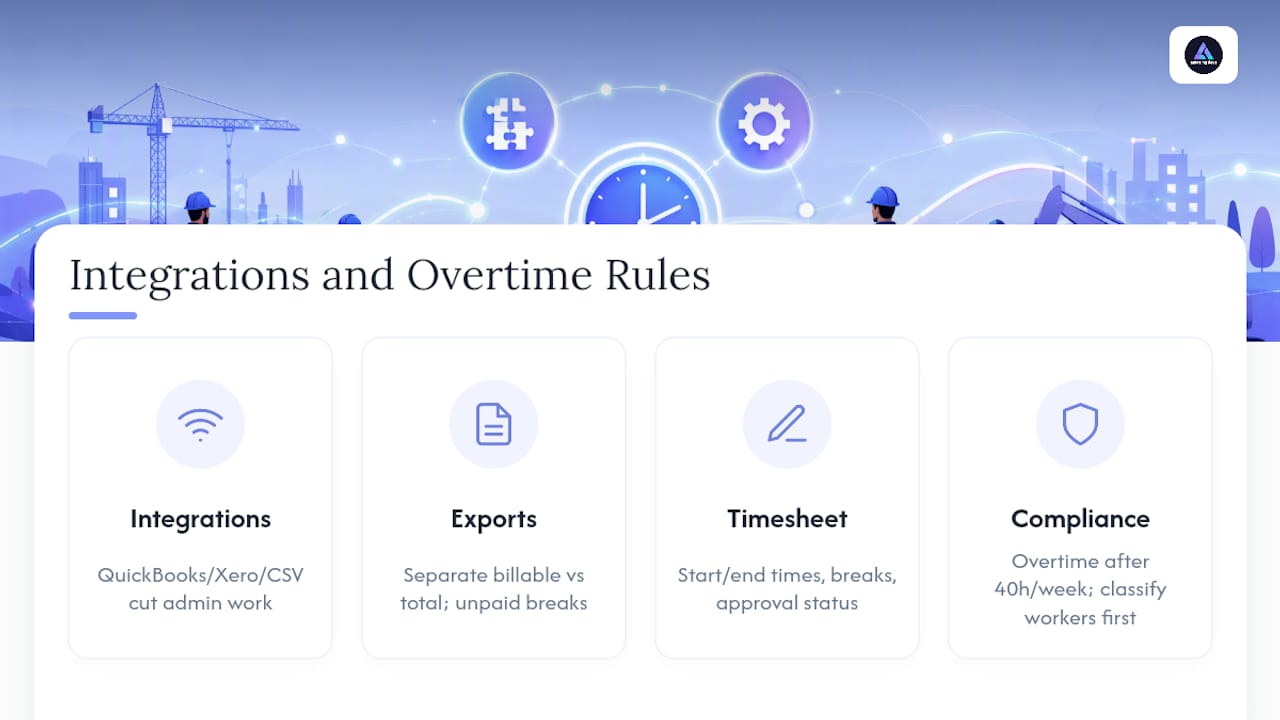
A time tracker that doesn’t talk to your accounting software just moves the manual work from a timesheet to a spreadsheet. Integrations with QuickBooks, Xero, and payroll exports, or at minimum a clean CSV, cut administrative time and reduce payment disputes because nobody’s retyping hours by hand.
For exports feeding payroll or certified payroll reporting, structure the file so it separates billable hours from total hours worked, tracks unpaid breaks distinctly, and tags each entry with a project code and pay rate. A contractor timesheet template that includes start and end times, break periods, and an approval status prevents the “wait, was that billable?” conversation that happens every pay cycle.
On compliance, one rule matters more than the rest: covered, non-exempt workers are legally entitled to overtime pay for hours worked over 40 in a fixed FLSA workweek. Your tracker doesn’t need to calculate this automatically, but it does need to preserve a clean, timestamped audit trail so someone can. If your workforce includes a mix of true independent contractors and employees, get the classification question settled before you build your tracking workflow, because misclassified overtime is a far more expensive mistake than a clunky app.
Locations that skip GPS verification and rely on manual entry alone are exposed to that same 2 to 8 percent overpayment risk, mentioned earlier as the cost of unverified time. Integrations don’t just save admin hours, they close that gap by making the source data trustworthy in the first place.
What Happens When Contractors and Nearshore Developers Share a Timesheet?
Where this gets messy is when a project mixes freelance contractors with a managed nearshore team. Amazing Devs runs into this constantly: a client’s in-house contractor tracks hours in Toggl Track, the nearshore developers report through a different system, and reconciling the two invoices becomes a monthly headache.
The fix isn’t a new tool, it’s a shared export format. Normalize every timesheet into one structure with worker ID, date, start and end time, unpaid breaks, a billable flag, project code, hourly rate, and approval status. Once every source, contractor app or vendor-managed team, exports to that same shape, reconciling invoices takes minutes instead of a full afternoon of cross-checking.
The pitfall we see most often: teams assume a nearshore vendor’s internal tracking will “just match up” with a contractor’s app data. It rarely does without a standardized format decided in advance. If your project mixes several contractors with nearshore staff, it’s worth reading through how to pay foreign contractors compliantly before your first invoicing cycle, not after a discrepancy shows up.
What Do Real Rollouts Actually Look Like?
A small residential construction outfit running four crews switched from paper timesheets to a GPS-based app mid-season specifically to stop arguing over drive time versus job-site time. Within one billing cycle, the office manager reported the invoicing conversation shortened from “let’s review this together” to a quick approval, because GPS timestamps answered the question paper never could.
A three-person consulting shop had the opposite problem: too much admin overhead tracking billable hours across five clients by hand. Switching to an automatic-capture tool cut the Friday afternoon “reconstruct the week” ritual almost entirely, because the software had already drafted the week’s timesheet for review instead of starting from a blank page.
The pattern in both cases isn’t the software brand, it’s that the tool matched the actual friction point. The construction crew needed proof of location. The consultant needed to stop losing an hour every Friday to memory. Neither would have solved the other’s problem, which is exactly why matching tool to job matters more than picking whatever ranks first on a review site.
What Actually Gets Contractors to Use a Time Tracker
The tools that survive past the pilot aren’t necessarily the ones with the longest feature list. They’re the ones that ask the least of the person using them. One field crew I looked at closely stuck with a GPS app for months after other software had failed, and the reason wasn’t the GPS itself. It was that clocking in took one tap and nobody had to remember a password.
The most common complaint isn’t inaccuracy, it’s friction: too many screens, a login that expires mid-shift, a manual edit process that requires calling the office. Every one of those is preventable before rollout, not after.
If you’re a busy owner with limited time to manage this, the honest takeaway is: pick the tool your least tech-savvy contractor can use without a phone call, then worry about reporting depth later. Adoption is the whole game.
— Gabriel
When Staff Augmentation Beats Managing More Contractors
Everything above solves the tracking problem, but tracking hours is only useful if the hours are worth tracking. At some point, chasing down five different contractors, five different timesheets, and five different invoicing cycles costs more time than it saves. That’s usually the moment to look at nearshore staff augmentation instead of adding another freelancer to the pile.
Amazing Devs handles the sourcing, technical vetting, and cultural fit assessment for Brazilian developers, then manages the contract and payment logistics so you’re not doing bureaucratic cleanup on top of project management. If you’re already spending real hours reconciling contractor timesheets across a growing project, adding a managed nearshore developer removes an entire layer of that admin, because contract terms, working hours, and billing are handled through one relationship instead of several separate ones. This works especially well once a project outgrows the “hire another freelancer” phase and needs steady, dedicated capacity instead.
Read the nearshore staff augmentation guide to see whether your current contractor mix has hit that tipping point, then start a conversation with Amazing Devs about what a managed nearshore hire would look like for your next project.
Primary Sources Referenced in This Article
- Harvest: timesheet app for contractors, for offline tracking and invoicing features.
- Timely: automatic time tracking, for AI auto-capture claims.
- Jibble: contractor time tracking app, for GPS and identity verification.
- U.S. Department of Labor, Wage and Hour Division, for federal overtime rules.
- Zapier: best time tracking apps, for buying criteria benchmarks.
Sources
- Time tracking for construction | ExakTime by Arcoro
- Best time tracking integrations | TrackingTime
- Overtime pay | U.S. Department of Labor (Wage and Hour Division)
- Timesheet app for contractors | Harvest
FAQ
Can QuickBooks Track Time for Contractors?
QuickBooks has basic built-in time tracking, but most contractors pair it with a dedicated app like Harvest, TimeCamp, or Everhour that syncs hours into QuickBooks automatically for invoicing and payroll, rather than relying on QuickBooks alone.
How Much Does a Construction Clock Time Tracker Cost?
Pricing typically runs from free tiers (Clockify, Jibble) to $8 per user per month for GPS-enabled, construction-focused apps like ClockShark, with enterprise plans priced separately for larger crews.
How Do You Track Hours as an Independent Contractor?
Use a simple timer app like Toggl Track or Harvest, log start and end times with project tags, keep breaks separate from billable time, and export a clean report before invoicing your client.
What Is the Best Time Card App for Construction Contractors?
ClockShark and Jibble are built specifically for construction crews, offering GPS verification, job costing, and payroll exports designed around field work rather than desk-based billing.